MYLTHA - Keynote Template: A Minimal Media Presentation Tool Worth Understanding
Presentation templates are everywhere. You scroll through marketplaces, see beautiful previews, and think, "That will make my next deck look amazing." But too often, what looks perfect in the preview becomes a headache the moment you try to customize it. The MYLTHA - Keynote Template is a different kind of offering. It is a minimal media presentation template that focuses on uniqueness across slides rather than repeating the same layout over and over again. Before you download it or any similar template, there are a few things worth understanding. Getting them right can save you time, frustration, and the awkwardness of a presentation that feels off.
What Makes MYLTHA Different from Typical Keynote Templates
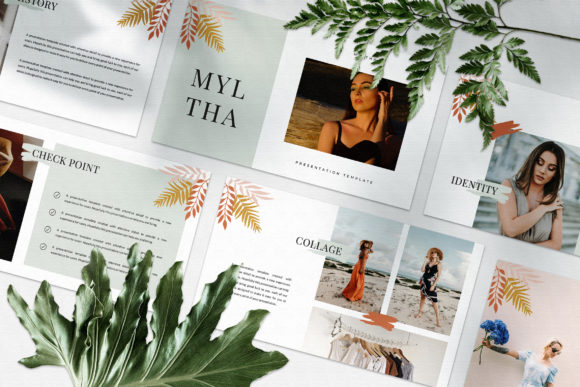
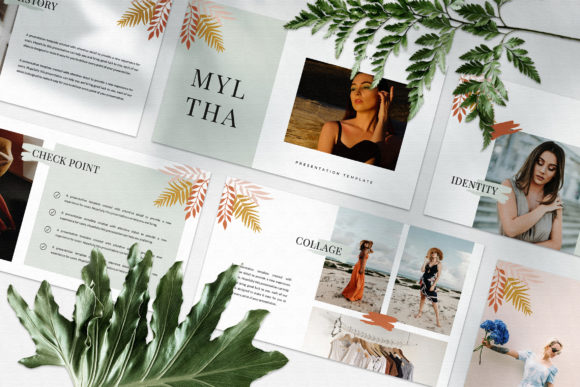
Most presentation templates rely on a master slide approach where you get one layout duplicated across a dozen slides. You change a photo, update the text, and move on. The MYLTHA - Keynote Template breaks this pattern by treating each slide as its own composition. This is not a gimmick. It is a thoughtful design decision for anyone who wants their presentation to feel more like a curated lookbook or magazine layout rather than a corporate slideshow. If you are presenting digital media work, marketing concepts, or a creative portfolio, this approach can make your content stand out.
However, this uniqueness comes with a responsibility. You cannot just drop in any image and expect it to work. Because each slide has its own arrangement of text and visual space, the images you choose matter more. The template includes picture placeholders, but the photographs shown in the preview are not included. You will need to source your own high-quality images from sites like Unsplash or Pexels. That is an advantage if you want a original look, but it is also a step many people skip, which leads to disappointing results.
Common Mistake: Assuming All Slides Will Look Identical
One of the first things people do when they open a presentation template is try to apply a single look across all slides. With MYLTHA, each slide is intentionally different. If you force the same photo, color treatment, or text block onto every slide, you will lose the very thing that makes this template valuable. The variety of layouts is there to help you tell a story with pacing and visual rhythm, not to create uniformity.
Instead of fighting this, embrace it. Look at each slide as a distinct scene. The first slide might introduce a concept with a large image and minimal text. The next slide could break that concept into three key points with smaller visuals. The third might be a full-bleed photo with a quote overlaid. This variation keeps your audience engaged. If you need a uniform corporate deck with identical slides throughout, this is probably not the right template for you. Be honest about your needs before you buy.
The Automatic Color Change Feature: Helpful but Not Magic
The MYLTHA - Keynote Template includes a unique theme color system that allows automatic color changes across all slides. This is a powerful time-saver, but it is not a set-it-and-forget-it feature. The automatic color change works well when you have a clear brand palette in mind. But if you randomly pick a color scheme, your presentation can end up looking disjointed.
Here is what I have seen happen more than once: someone selects a vibrant accent color, and it looks great on a slide with a dark background but clashes badly on a lighter slide. The automatic system applies the color consistently, but the surrounding design elements on each slide interact with it differently. The fix is to test your chosen color across three or four different slide layouts before committing. Adjust the hue or saturation slightly if needed. This small step can be the difference between a polished deck and one that feels slightly off.
Overlooking the Resolution Requirement
This template is built at 1920x1080 pixels Full HD. That is standard for most modern displays, but it matters more than people realize. If you export your presentation to a lower resolution, you lose the crispness that makes the minimalist design work. The clean lines and generous whitespace depend on sharp rendering. Blurry edges or pixelated text will ruin the effect.
Always check your export settings in Keynote. Make sure you are outputting at the native resolution. Also, if you plan to project the presentation onto a large screen, test it beforehand. Some projectors handle Full HD well, others compress the signal. Do not let your hard work be undermined by a technical oversight.
Font Choices: Free Fonts Require a Download
The MYLTHA - Keynote Template uses free fonts, and the help instruction PDF includes links to download them. This is a common point of confusion. People see the gorgeous typography in the preview and assume it comes bundled with the template. It does not. You must download and install the fonts yourself before you start editing. If you skip this step, Keynote will substitute a default font, and the entire layout can shift. Text boxes that were perfectly sized now overflow, line breaks appear in the wrong places, and the overall balance is lost.
Install the fonts first. Open the PDF instruction file, click the links, download the font files, and install them on your system. Then launch the template. This takes five minutes and saves you from having to redo all your text formatting later. If you are on a team, make sure everyone working on the presentation has the same fonts installed.
Image Placeholders: What You See Is Not Included
This cannot be overstated: the beautiful photographs in the preview are for illustration only. They are not part of the purchase. The template includes placeholder boxes where your images should go. You need to supply your own photos. This is a feature, not a limitation. It means your presentation will be unique. But it also means you need to plan your image sourcing ahead of time.
A practical approach is to create a folder of candidate images before you even open the template. Look for photos that have clear focal points and good contrast, because the minimalist layouts rely on strong visuals to carry the design. If you use low-quality or cluttered images, the whole slide suffers. Unsplash and Pexels are excellent sources, but even your own photography can work well if you maintain consistent lighting and style across the set. Do not mix gritty, high-contrast street photography with soft, pastel product shots on adjacent slides. The inconsistency will feel jarring.
Dragging and Dropping Images: Simple but Easy to Rush
The template is made with Slide Master, so you can simply drag and drop your images into the placeholders. That part is genuinely easy. The mistake people make here is rushing. They drag an image into the placeholder without checking how it crops. The placeholder is a specific shape, and Keynote will automatically fit the image inside it. That means parts of your image may be hidden. If the most important part of your photo ends up cropped out, the slide loses its impact.
Always double-click the image after dropping it in. This lets you reposition the photo within the placeholder so the focal point is visible. It takes an extra two seconds per image and makes a noticeable difference. Do this for every slide with a photo, not just the first one.
Customization Is Easy, but Editing Carefully Matters
The template is fully editable. You can change text, colors, images, and even move elements around. But just because you can edit everything does not mean you should. One of the biggest mistakes I see is people over-customizing. They add extra text boxes, move elements too close to the edges, or introduce a second font. Before you know it, the clean minimalism is gone, replaced by clutter.
Trust the design. The layouts have been thought through. If you need to add more content than a slide can comfortably hold, consider splitting it across two slides rather than cramming it in. Minimal templates work best when you respect the negative space. Your audience will appreciate a presentation that breathes.
Who Should Consider Using MYLTHA
This template is a strong fit for creative professionals, marketing teams, entrepreneurs pitching ideas, educators who want visually engaging lecture slides, and bloggers creating media kits. It works well for any scenario where you want your presentation to feel curated rather than templated. If you are a freelancer or small business owner who frequently presents to clients, the lookbook-style layouts can help you appear more established and design-savvy.
On the other hand, if you need a strict corporate template with identical branded slides, or if you are not comfortable sourcing your own images and installing fonts, you might find the process more demanding than expected. Buy the template for what it is, not for what you wish it were.
Final Practical Advice Before You Buy or Use
Before purchasing the MYLTHA - Keynote Template, ask yourself a few questions. Do I have the time to select my own images and install fonts? Am I comfortable working with varied layouts, or do I prefer uniformity? Do I have access to high-resolution photos that match the tone I want? If the answer to these is yes, this template can serve you well.
Once you have it, follow the included instructions. Install the fonts first, test the automatic color feature on a few slides, and position each image thoughtfully. Respect the design choices already made for you, and only customize where it genuinely improves your message. Your audience may not notice the template. But they will notice that your presentation feels polished, intentional, and easy to follow. That is the whole point.