The ELIZABETH Keynote Template: Avoiding Common Pitfalls in Modern Presentation Design
You have a big pitch, a product launch, or an internal strategy meeting, and you need slides that look polished without hours of design work. Minimal media templates like the ELIZABETH Keynote Template promise a clean, magazine-style solution. But buying a template is only half the story. Many users, from freelancers to marketing teams, make the same correctable mistakes when adopting a template like this. Understanding those missteps is the difference between a presentation that looks like a custom build and one that feels like a generic fill-in.
What the ELIZABETH Template Actually Delivers
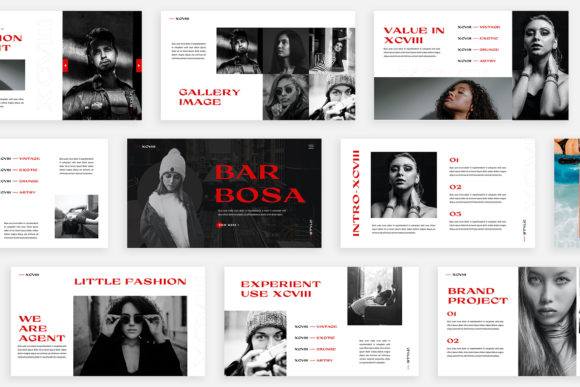
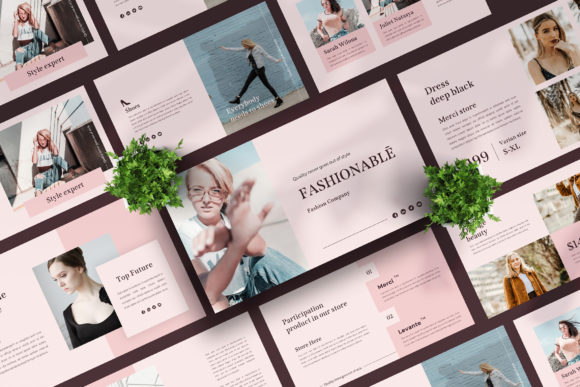
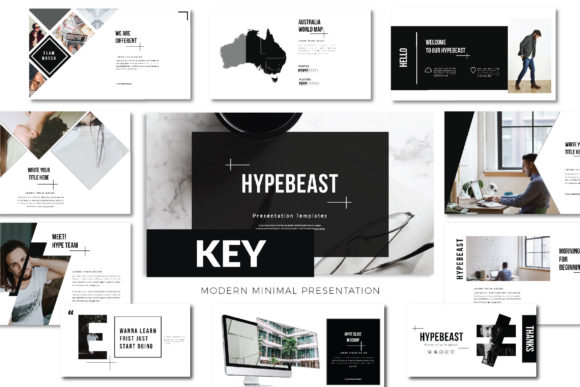
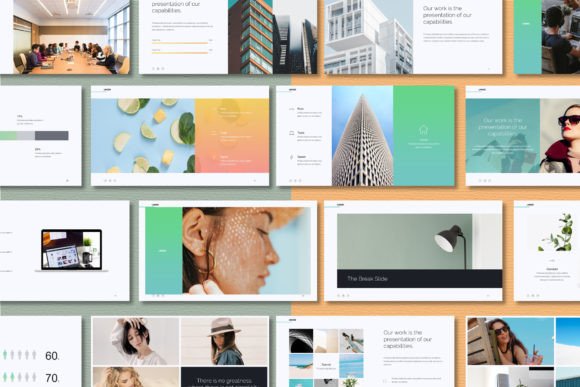
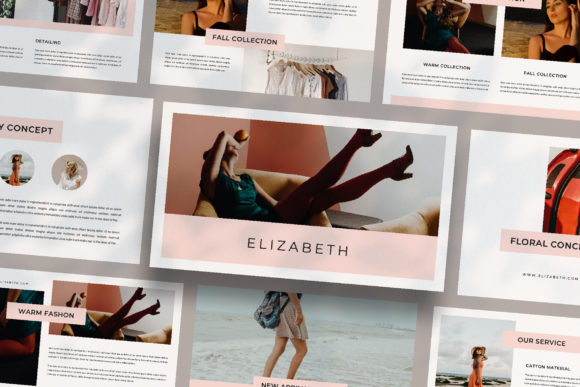
The ELIZABETH Keynote Template is built around the idea that every slide should feel distinct. Instead of relying on a single repeating layout, it offers varied compositions: lookbook-style spreads, text-heavy editorial pages, and clean image-centric frames. At 1920x1080 Full HD, it works natively on modern screens. The theme includes automatic color change, drag-and-drop image placeholders via Slide Master, and relies on free fonts linked in the help PDF. It is designed for digital media, marketing, client presentations, or personal branding projects. The sample images in the preview are not included, so you will source your own from Unsplash or Pexels.
The real value lies in the variety of layouts. A common misunderstanding is that a good template eliminates all design thinking. In reality, it removes the mechanical work but still requires your editorial judgment.
Mistake 1: Ignoring the Slide Master Logic
The ELIZABETH template is built on Apple Keynote’s Slide Master feature. This is where the automatic color, placeholder positions, and consistent typography live. A frequent error is dragging images directly onto the slide canvas instead of using the designated placeholder boxes. When you bypass the placeholder, the image does not crop correctly to the frame, and the theme color does not apply properly. You end up with distorted photos or mismatched hues that break the minimal aesthetic.
Better approach: Always insert images by clicking the icon inside the placeholder frame. This ensures the crop, mask, and color overlay behave as intended. If you need to replace an image, right-click the placeholder and choose “Change Image” rather than deleting and inserting a new box. This preserves the connection to the Slide Master.
Mistake 2: Overlooking the Automatic Color Change Feature
The unique theme color in ELIZABETH allows for automatic color changes across the entire deck. Many users treat this as a one-time set-and-forget. They pick a color at the start and never revisit it. The problem is that not all colors work equally well with all image types. A dark teal theme might clash with warm product photos, or a bright accent might overwhelm the clean layouts.
Practical advice: Build your deck with placeholder colors first, then bring in your final images. Once your photos and graphics are placed, adjust the theme color to complement the dominant tones in your images. If your images are cool and muted, choose a soft blue or slate. If your images are high-contrast black and white, a single bold accent color can draw attention to key headlines without competing. Test the automatic change on three different slide types before committing.
Mistake 3: Filling Every Layout With Text
The template includes lookbook and magazine-style layouts. These are visually generous: large images, generous white space, and concise text areas. A common mistake is treating these layouts like standard corporate templates and cramming in bullet points, footnotes, and disclaimers. The moment you overfill a magazine-style slide, it loses its editorial feel and becomes cluttered.
How to avoid this: Treat each slide as a page in a premium publication. If the layout offers a large image and a small caption, use it for a single powerful quote or a brief data point. If you need to convey dense information, use the layouts that are designed for text. The template likely provides both—lean into the variety. A deck that alternates between a full-bleed image slide and a clean text slide feels dynamic. A deck where every slide is stuffed with copy feels exhausting.
Example: Suppose you are presenting quarterly results. Instead of putting four charts on one slide, use one magazine-style spread for the key takeaway with a strong image behind it. Then use a separate text-focused layout for the supporting numbers. Your audience will remember the story, not the overloaded slide.
Mistake 4: Using Inconsistent Image Quality and Style
The ELIZABETH template shines with high-resolution, well-lit photography. Because the layouts are minimal, the imagery carries much of the visual weight. A common error is mixing stock photos with different lighting, color temperatures, or aspect ratios. One warm lifestyle photo followed by a cool corporate shot breaks the coherence of the deck. Similarly, using low-resolution images on a Full HD canvas results in blurry, unprofessional slides.
What to check before you buy: The template does not include images. That means you are responsible for sourcing your own. Before you start building, collect a unified set of images. If you use Unsplash, pick photos from the same photographer or search within a consistent style (e.g., flat lay, natural light, or minimalist architecture). If you use Pexels, apply a similar filter. This advance planning prevents the jarring visual shifts that undermine a minimal design.
Mistake 5: Neglecting the Free Font Setup
The template relies on free fonts, with links provided in the help PDF. A mistake that appears both amateur and avoidable is opening the Keynote file without installing those fonts first. When the fonts are missing, Keynote substitutes fallback typefaces, which shift spacing, break alignment, and destroy the intended layout. The unique theme color might still apply, but the typography will look wrong.
Better workflow: Download and install the free fonts before you even open the template. Restart Keynote if necessary. If you share the file with a collaborator who does not have the fonts installed, the same problem occurs. Either embed the fonts in the Keynote file (File > Save As > Embed Fonts) or include a note in your delivery email. For client presentations, consider exporting to PDF or using a locked format if font fidelity is critical.
Mistake 6: Ignoring the Intended Audience and Context
The ELIZABETH template is described as perfect for digital media, marketing, or personal projects. It is not a generic corporate template. A misunderstanding is trying to force it into a use case it was not designed for. If you need a dense technical report, a formal board deck with extensive tables, or a slide-by-slide script for a 60-minute training, this template may feel restrictive. The layouts prioritize visual impact over information density.
How to evaluate: Before purchase, look at the layout variety. Count how many unique slide types are shown. If you see twelve or more distinct compositions, you have flexibility. If you need to present a lot of data, consider whether you can use the text layouts effectively or if you would be better served by a more data-oriented template. Matching the template to your content type saves you from fighting the design later.
Mistake 7: Skipping the Help PDF
The template comes with a help PDF that explains font links, the automatic color change, and advanced editing tips. Many users ignore this document and try to figure out the template through trial and error. That leads to frustration: wondering why the color is not updating, how to add new slides without breaking the theme, or where to find the image placeholders.
Practical step: Read the help PDF for five minutes before you start. Identify the Slide Master view, locate the color theme settings, and check which text styles are tied to which layout. This small investment prevents the wasted time of fixing broken formatting later. It also helps you understand the designer’s intent, which makes your customization faster and more coherent.
What to Verify Before You Download or Buy
Before committing to the ELIZABETH Keynote Template, confirm a few practical details:
- Software version: Ensure you are using a recent version of Apple Keynote. Older versions may not support all Slide Master features or the automatic color change.
- Font availability: Check that the required free fonts are accessible for download. Some free fonts have limited character sets, which might matter if your content includes special characters or non-English languages.
- Image workflow: Plan how you will source your own images. If you are on a tight deadline, having a library of consistent, high-res photos ready will make the template sing.
- Export requirements: If you need Microsoft PowerPoint compatibility, remember that Keynote templates do not translate perfectly. Layouts, fonts, and effects will likely break. For most users, this template is best used within the Apple ecosystem.
The Real Benefit of a Thoughtful Template
A template like ELIZABETH is not a shortcut that replaces your judgment. It is a framework that removes the repetitive decisions about spacing, alignment, and color. When you use it correctly, you free up mental energy for your message. The danger is treating it as a magic bullet—buying it, dropping in content, and expecting perfection. The better mindset is to see the template as a collaborator. You bring the story, the images, and the context. The template brings the structure and the polish.
If you have ever built a presentation from scratch and spent hours nudging text boxes and adjusting margins, you understand the value of a tool that handles that baseline. The ELIZABETH template does that well, provided you respect its logic. Use the placeholders, match your images to the style, install the fonts early, and lean into the magazine-inspired layouts. Your audience will not know you used a template—they will simply see a clean, confident presentation that lets the content lead.
For buyers, the designers include a note of thanks with a wish: that the work helps you look presentable in front of your audience. That is exactly what this template can do when you avoid the common pitfalls and treat it as the starting point for your own creative input.